
How It Works
Most AI services send every request — regardless of complexity — to the same large, resource-intensive model. Green Robot AI takes a different approach. Before a query reaches any model, a lightweight routing layer evaluates its complexity and directs it to the model best suited to handle it. Straightforward requests are processed by a smaller, energy-efficient model; complex tasks are forwarded to a full-capability frontier model. The result is lower energy usage across the board, with no loss in answer quality where it counts.Intelligent Query Routing
When you send a message, Green Robot AI assesses the request before selecting a model. Routine tasks — such as defining a word, drafting a short email, converting units, or generating a quick list — are handled by a lightweight, high-efficiency model that responds quickly and consumes significantly fewer resources per request.More demanding tasks — including in-depth research, nuanced analysis, complex code generation, and multi-step reasoning — are automatically routed to a top-tier frontier model with the capacity to handle them effectively. This ensures you receive the most capable response exactly when the task calls for it.
Why the Savings Are Significant
The energy difference between models goes beyond raw size. Many of today's most powerful models perform extensive internal reasoning — evaluating possibilities, weighing alternatives, and refining their answers — before producing a visible response. This hidden computation can consume many times the resources of the final output itself, and often adds noticeable latency.For straightforward questions, that additional computation provides little or no benefit. By routing simple requests to an efficient model that responds directly, Green Robot AI avoids this unnecessary overhead, reducing both energy consumption and response time.
The Boost Button
Intelligent routing handles the vast majority of requests correctly, but there are times when you may want a more detailed or nuanced response than the lightweight model provides. When a conversation is being handled by the efficient model, a Boost button appears at the bottom of the chat window.
Clicking Boost upgrades the conversation to the most capable model for the remainder of that chat. The previous response is automatically regenerated using the upgraded model, so you receive a richer answer immediately — no need to retype your question. The conversation continues seamlessly from that point forward with the full-capability model.
Manual Overrides
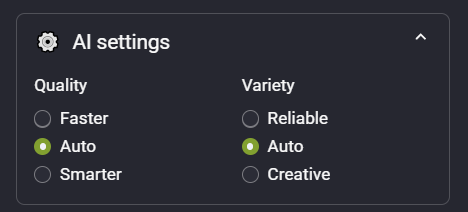
If you prefer to choose the model yourself rather than relying on automatic routing, the Quality slider in the AI Settings panel provides three options:- Faster — always uses the efficient model for quicker responses and lower credit usage.
- Auto (default) — lets Green Robot AI select the best model for each message automatically.
- Smarter — always uses the frontier model for maximum depth and capability.
The Sidebar
The sidebar serves as the main control panel for Green Robot AI. From here you can access your chat history and configure AI behavior. Below is a section-by-section overview.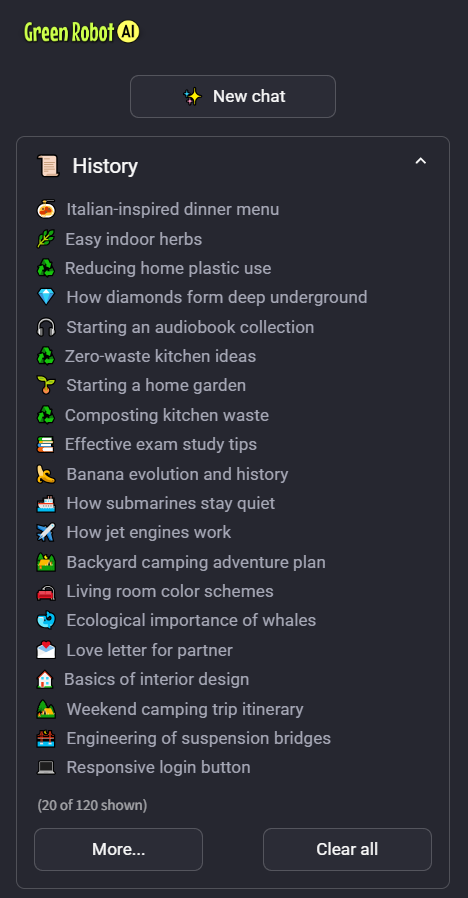
Sidebar
At the top of the sidebar, the ⭐ New chat button starts a fresh conversation at any time.
The ⚙️ Options button opens the options menu (more on that below).
History
The History panel displays your recent conversations.
- More… — loads more chat transcripts.
- Clear all — permanently deletes your entire chat history. This action cannot be undone!
Click any conversation title to reopen it and continue where you left off.
AI Settings
The AI Settings panel provides two sliders that let you control how the AI responds.
Quality — controls the trade-off between speed and depth:
- Faster — prefer a lightweight model for quicker responses.
- Auto (default) — allows the system to select the most appropriate model for each message.
- Smarter — prefer a most capable model, which may take slightly longer to respond, and use more power.
Variety — controls how predictable or exploratory the AI's responses are:
- Reliable — produces more deterministic output that stays close to the most likely answer.
- Auto (default) — provides a balanced mix of consistency and variation.
- Creative — generates more varied and imaginative responses.
Allow web search — This option allows the AI to use the web for current events or to look up more information. This can make responses slower, and may use more energy. Green Robot only activates web search when needed.
Advanced
Allow reasoning — allow the AI to "think" for a while to provide a better response. This uses a lot more energy! Only enable reasoning when the extra power is needed. Green Robot will set the AI's reasoning level to match the difficulty of the query.
Limit reasoning level — prevents thinking from taking too long, especially for easier queries.
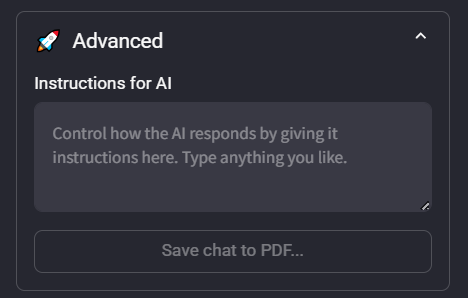
Instructions for AI — a text field where you can provide system-level instructions that apply to every conversation. For example, you might enter "Always reply in British English" or "You are a helpful coding tutor." Whatever you write here is given to the AI for every chat.
Download markdown — download the current conversation as "markdown", which is text with a special notation for formatting."
Save chat to PDF… — exports the current conversation to a PDF file, useful for sharing, printing, or archiving.
The Options menu
Press the ⚙️ Options button at the top of the sidebar to open the Options menu.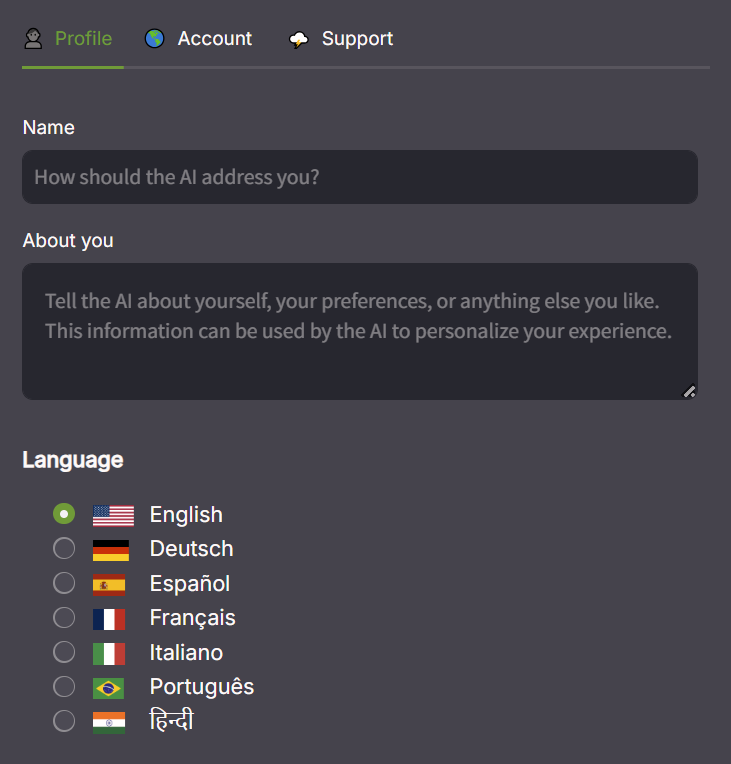
Profile
Name — (optional) your preferred way to be addressed
About you — (optional) any background information the AI might find useful to customize its response.
Language — sets the language for the user interface and all menus. This also changes the default language for the AI response, but it will generally try to reply in the same language as the question.
Chat background — what to show on the new chat screen. By default it's a "splash screen" with example prompt cards, but there's a more tasteful watermark style too.
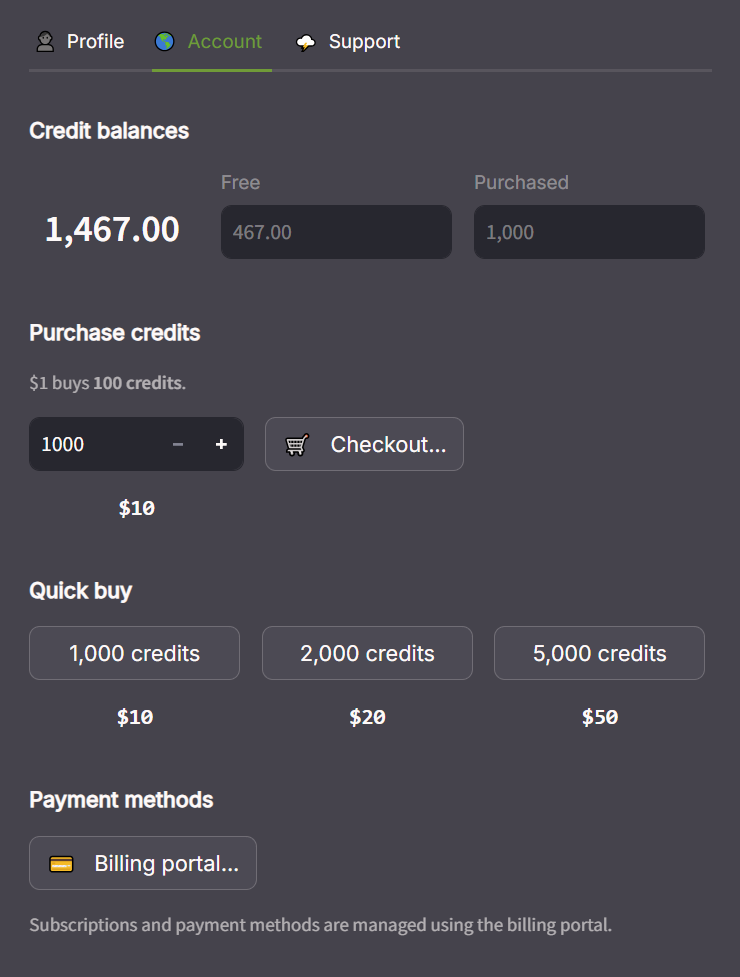
Account
Credit balances — displays your remaining credits, divided into two separate pools:
- Subscription — credits included with your current plan, replenished at the start of each billing cycle.
- Purchased — additional credits bought separately. These do not expire.
Purchase credits — allows you to purchase additional credits in any quantity, using the normal checkout flow.
Quick buy — subscribers have convenient one-click buttons to purchase additional credits in fixed bundles, without going through the checkout again.
Payment methods — opens an external billing portal where you can manage your subscription plan, update payment methods, and review invoices. Clicking this button brings up a link to the payment portal. Click the link to proceed.
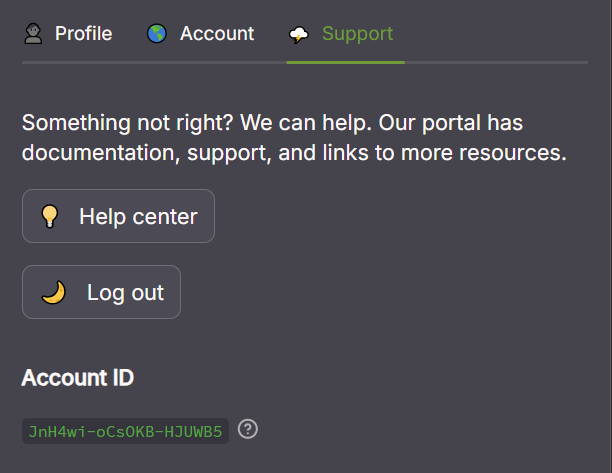
Support
Help center — opens the documentation and support portal, which includes FAQs, usage guides, and contact options for the support team.
Log out — signs you out of your current session.
At the bottom of the menu you will find an account ID (e.g., the one in the picture is JnH4wi-oCs0KB-HJUWB5). If you need to report an issue or contact support, please include this ID so the team can locate your account.
Chat buttons
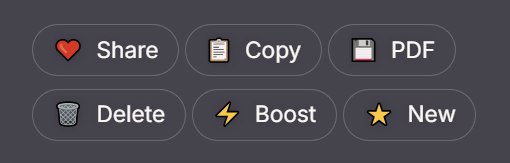
At the bottom of every chat is a set of buttons. Some may not appear in every situation. These buttons let you manage the chat.
Share — generate a sharing link for the chat. It shows the entire chat transcript, both user queries and AI responses. Anyone with the link can read the contents of the chat.
Copy — copy the entire chat to the clipboard as markdown.
PDF — for advanced subscribers only, download the chat transcript as a PDF document.
Delete — permanently delete this chat. Any shared links will stop working.
Boost — regenerate the last response with more powerful AI. If a power-optimized response is not satisfactory, this will send the query to a frontier model instead for maximum intelligence.
New — clear this chat and start a new one.
Subscriptions
Billing and Payments
You can manage your subscription, update payment methods, and review invoices through the billing portal, accessible from the Account section of the options menu.Credits
Subscription Credits
Paid plans include a fresh allocation of credits at the start of each billing cycle. Subscription credits are always consumed first. Unused subscription credits do not roll over — they reset when your next billing cycle begins.Purchased Credits
If you need more credits than your plan provides, additional credits can be purchased at any time in bundles of 10, 20, or 50 from the Buy more credits option in the Account section of the sidebar.Purchased credits never expire and are maintained in a separate balance. They are only drawn upon once your subscription credits for the current billing cycle have been fully consumed.
Checking Your Balance
Your current credit balances — subscription and purchased — are displayed in the Account section of the options menu at any time. For a detailed breakdown of usage history and transaction records, visit the Billing portal.
Support